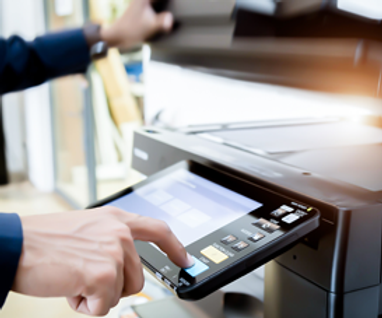
Toshiba e-STUDIO multifunction printers combine fast, high-quality print, copy and scan with enterprise-grade security. A customisable touchscreen and open app platform let every device adapt to the way your people actually work, helping improve productivity and streamline document workflows.
Toshiba's multifunction device best laser printer series

Most offices do not need a printer.
They need one machine that prints, copies and scans reliably, connects to the systems people already use, and does not become somebody's second job to keep running.
That is what the e-STUDIO range is built for. Toshiba Tec makes these machines, sells them across Canada both directly and through a dealer network, and supports them afterwards. Colour and monochrome, desktop units through to high volume floor-standing models, all running the same interface so nobody has to relearn anything when the office grows.
Find the right machine for how your office actually works
Buying by page-per-minute alone is how offices end up with a machine that is either constantly queued or mostly idle. It is worth starting with the work instead.
Smaller teams and departments. Compact colour multifunction units that sit in a shared space, handle everyday printing and scanning, and do not need their own room.
Busy general offices. Mid-range colour and monochrome A3 machines built for steady daily volume, with finishing options for stapling and booklets when documents go out to clients.
High volume environments. Floor-standing production models for print rooms, in-house reprographics and any environment where output is continuous rather than occasional.
Specialist requirements. Where scanning volume, security policy or a specific integration drives the decision rather than print speed.
If you are not sure which group you fall into, that is the normal starting point. Tell us what you print and where the current setup frustrates people, and we will narrow it down.

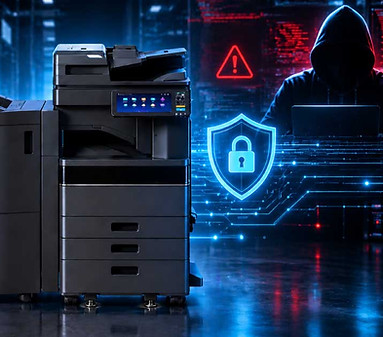
Secure printing, built in rather than bolted on
A multifunction printer sits on the network, holds documents in memory and sends files to email and cloud storage. That makes it part of your security posture whether anyone planned it that way or not.
Windows Protected Print support. Works with the modern Windows printing stack, which removes the need for third party print drivers and closes off a well known source of vulnerabilities.
Authentication at the device. Users identify themselves before anything releases, so documents are not sitting in the output tray waiting for whoever walks past.
Pull printing. Send a job from any desk, collect it at any device. Nothing prints until the person is standing there.
Encrypted storage and secure erase. Information stored on the device is protected by encryption. Completed jobs are automatically and securely wiped from the device, and a full device wipe can be performed when the machine is retired, replaced, or moved.
Cloud printing and scanning that fits your existing tools
Scanning is where most offices lose time, usually by scanning to email or a folder and then saving or moving the file somewhere else by hand.
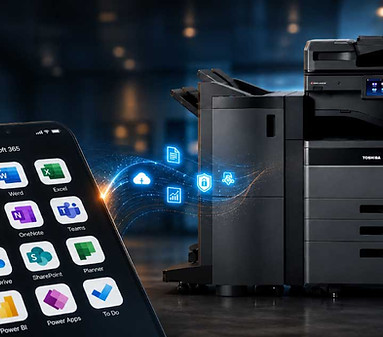
Scan to cloud. Send scans directly into SharePoint, OneDrive, Google Drive, Dropbox and similar destinations from the device panel.
Print from anywhere. Staff can print from laptops, phones and tablets without being on the office network, which matters when the office is only occupied part of the week.
Searchable output. Scanned documents can be converted to searchable PDF, so a contract from three years ago is findable by what is written in it rather than by remembering the filename.
Straight into your workflow. For teams already running document management or invoice processing, the machine can be set up as the front door to that process rather than a separate step. See our workflow automation page.

Print management and cost control
Once there is more than one machine, the question stops being what each one costs and starts being what the whole fleet costs.
Print management software shows you who is printing what, where and at what cost, then lets you set rules around it. Default to double sided. Route long jobs to the cheaper machine. Restrict colour to the people who need it. Charge printing back to a department or a client matter.
Most offices are surprised by what turns up in the first month of that data. Our managed print services page covers how we approach that assessment.
Support after the sale
A printer is only as good as what happens when it stops working.
Toshiba Tec Canada supports these machines both directly and through a national dealer network, which means service is local to you rather than routed through a call centre in another time zone. Supplies, parts, driver updates and firmware all come from the same place, and our support section carries drivers, safety data sheets, manuals and training videos for the whole range.